Blog · Keyboards
I Tried the Most Popular iPhone Keyboard Apps: Here's the One I Kept
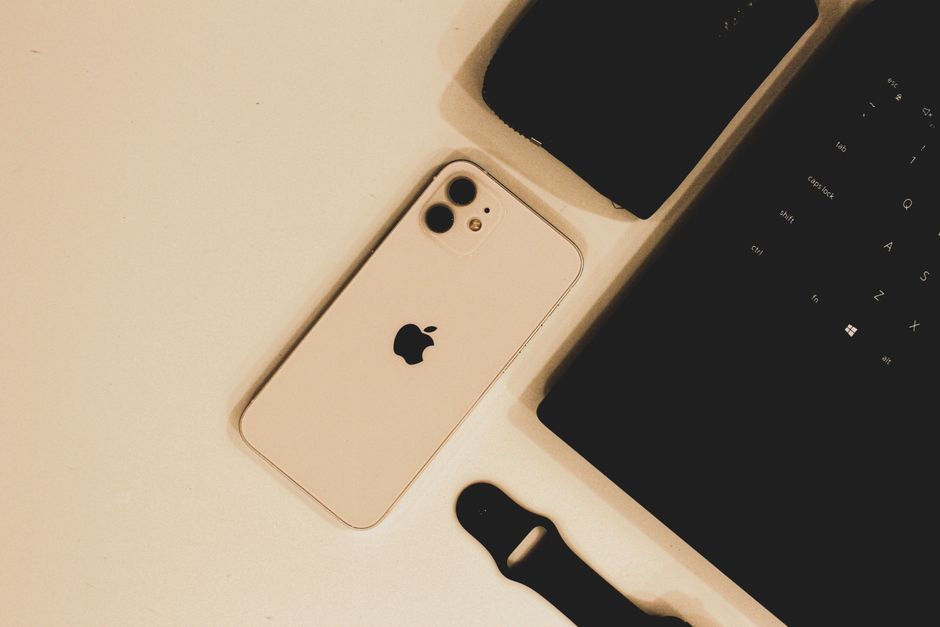
MakeUseOf's writer ran through several popular iPhone keyboard apps before settling on one for daily typing. The method behind that pick — checking permissions, testing autocorrect feel, and giving each app a real week of use — is the same one worth running yourself before you commit to a replacement for the stock keyboard.
What MakeUseOf actually tested
The core question in the piece was simple: does a third-party option earn a permanent spot on the keyboard list, or does it get deleted after a day? That means the test wasn't about flashy launch screens. It came down to how each app behaved during normal texting, how often autocorrect guessed wrong, and whether switching between apps felt smooth enough to stick with long-term.
You can run the same evaluation. Install, use for a stretch of ordinary typing — messages, notes, social captions — and only then decide if it earns a permanent slot.
Which permissions should you check first
Before typing a single word in a new keyboard, open its settings in the App Store listing or inside the app itself and look for a toggle labeled Full Access. iOS requires this toggle for any keyboard that wants to sync data (like custom themes) across devices or reach outside the Messages sandbox. It is not required for basic typing.
The practical move: enable Full Access only if the feature you want depends on it, and confirm the developer states what that access is used for. Beautiful BubbleText Keyboard, for example, only asks for Full Access to sync color and font packs — the on-device autocorrect runs without it.
How to try a keyboard without losing your old one
Adding a new keyboard doesn't remove the stock one, so there's no risk in testing several in parallel:
- Go to Settings > General > Keyboard > Keyboards > Add New Keyboard.
- Pick the app from the list and enable it.
- Open Messages or Notes, tap the globe icon next to the space bar, and cycle through your installed keyboards.
- Type a few real sentences in each — not test phrases — and note how autocorrect handles your usual vocabulary.
- Repeat across a couple of apps (Messages, Instagram captions, WhatsApp) since some keyboards behave differently depending on the text field.
Switching back to the default keyboard is just as easy, so nothing here is permanent until you choose it to be.
Where the keyboards split apart
Most keyboard apps nail the basics — letters appear where expected, autocorrect fixes typos. The differences show up in extras: swipe typing, emoji search, theme packs, or stylized text. Beautiful BubbleText Keyboard focuses on that last category, offering circled bubble letters along with Unicode styles like script, fraktur, and monospace, plus a handful of free color themes with a live preview before you apply a look. It works inside Messages, Instagram, Snapchat, WhatsApp, Notes, and anywhere else iOS lets a third-party keyboard run.
What separates these add-ons from gimmicks is whether the core typing experience stays reliable while you use them. An app that nails novelty text but fumbles basic autocorrect isn't a real contender.
Terms worth knowing before you switch
- Full Access: the iOS permission that lets a keyboard sync data outside its own sandbox, such as cloud-synced themes. Not needed for typing or local autocorrect.
- Unicode styles: alternate character sets (circled, script, monospace, and similar) that let you format text without changing fonts system-wide, since they're just different characters.
- On-device autocorrect: correction logic that runs locally on the phone rather than sending what you type to a server.
Picking the keyboard you keep
After a few days of mixed use, the one that survives is usually the one where you stopped noticing the keyboard at all — autocorrect matched your habits, switching felt instant, and any permission it asked for had an obvious reason attached. That's the same bar MakeUseOf applied, and it holds up whether you're testing a swipe-typing app, an emoji-heavy one, or a text-styling keyboard like Beautiful BubbleText Keyboard for the Unicode and bubble-letter options. Keep testing until one disappears into the background of how you already type — that's the sign you found the keeper.
BubbleText
A custom iPhone keyboard for bubble text, Unicode styles, and color themes. Autocorrect stays on your device. Full Access is only used to sync themes.
Learn moreMore from the blog
Written by Smorgi Apps at Smorgi Apps. We do not invent download counts or ratings. If a number appears here, it came from App Store Connect or the live listing.