Blog · Keyboards
5 Steps to Use Custom Fonts on iPhone & iPad Free with Creative Cloud (OSXDaily)
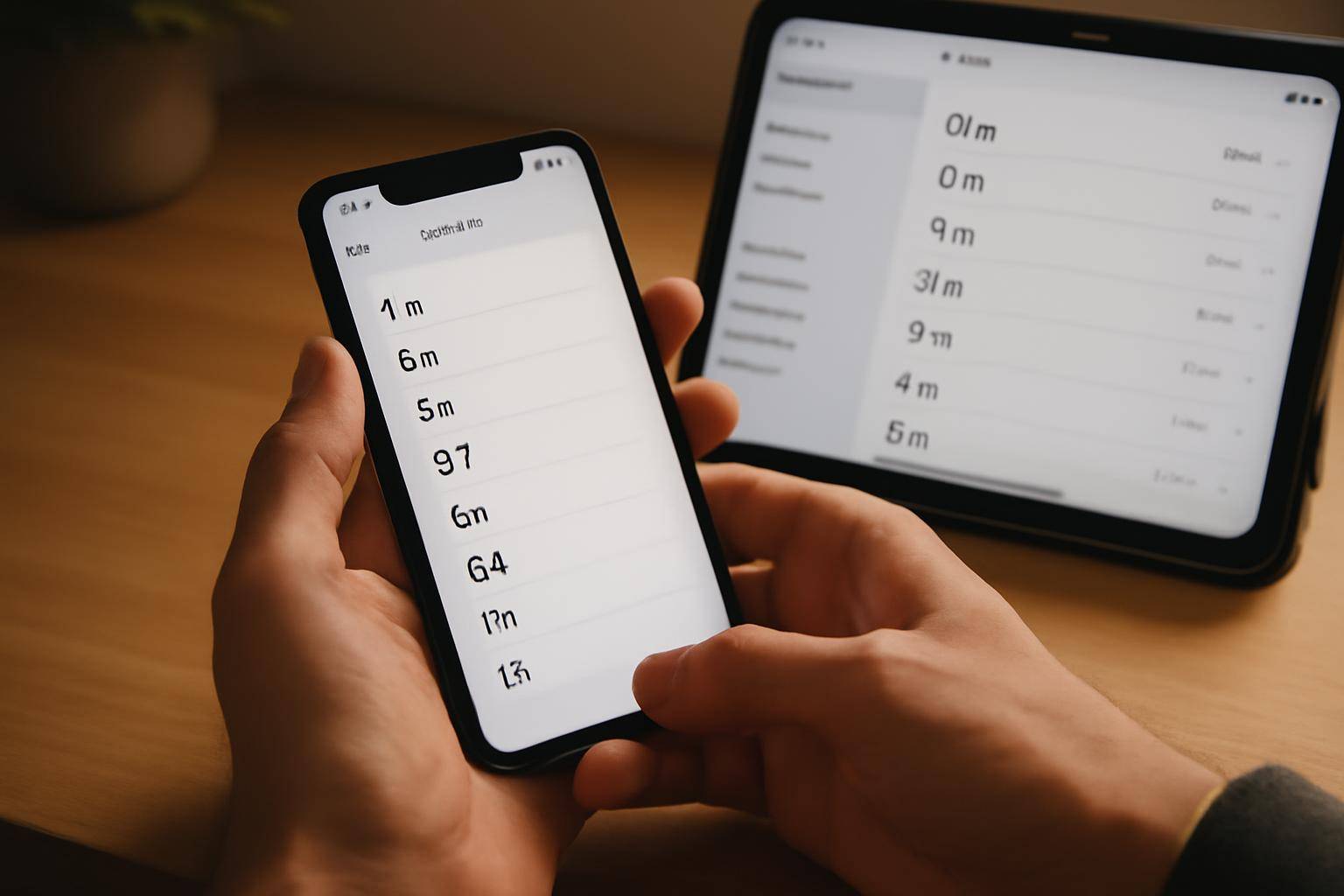
Custom fonts on an iPhone or iPad usually mean a workaround — a weird keyboard trick or a third-party app that swaps a few letters. OSXDaily's walkthrough takes a different route: pulling real fonts out of Adobe Creative Cloud and activating them for free, right from your device. Here's the process broken into five steps.
What do you need before you start?
You need the Adobe Creative Cloud app on your iPhone or iPad and an Adobe ID. The app is how Adobe syncs font libraries to a device, and it's the entry point for everything that follows. No Creative Cloud subscription purchase is required for the free tier of font access that OSXDaily describes.
How do you activate fonts in Creative Cloud for iPhone or iPad?
Open the Creative Cloud app, sign in, and browse the font library. Tap a typeface you want, then toggle it on. Activation happens server-side on Adobe's account, which is why the next step — installing a profile — is what actually makes a font available system-wide on iOS.
How do you install the font profile on iOS?
Once fonts are activated in the app, iOS prompts you to install a configuration profile tied to those fonts. Head to Settings, confirm the profile install, and the typefaces register at the system level. This is the same mechanism iOS uses for other font-management apps, so it should feel familiar if you've added fonts before.
Where can you use the new fonts once they're installed?
The catch is that only apps built to read system fonts will show them in a font picker. Pages, Keynote, and similar document apps typically do. Messaging apps, social apps, and most text fields in iOS do not expose a font menu at all, because they're coded to a fixed style. That's the tradeoff of system fonts: broad installation, narrow visibility.
How does this work with Beautiful BubbleText Keyboard?
This is where a different approach fills the gap. Beautiful BubbleText Keyboard doesn't install fonts into iOS at all — it swaps letters for styled Unicode characters as you type, which means the text looks the same everywhere, including apps that never show a font picker: Messages, Instagram, Snapchat, WhatsApp, Notes. The free tier includes bubble text, standard styles, and six color themes, with correction handled on-device so typed text never leaves the phone. It's a narrower trick than full font activation, but it works in places Creative Cloud fonts cannot reach, since Unicode styling travels with the character itself rather than depending on an app reading a system font list.
Full Access in BubbleText is only used to sync color and font packs — standard autocorrect runs without it.
Quick facts
- Creative Cloud font activation: free, requires Adobe ID
- Works in: apps with a system font picker (Pages, Keynote)
- Does not work in: most chat and social apps with fixed text styles
- BubbleText free tier: bubble text, standard styles, six color themes, on-device autocorrect
The two methods solve different problems. If you're formatting a document, Creative Cloud's font library is the right tool. If you want a styled look that shows up consistently in a text message or a caption, a Unicode keyboard is built for exactly that case. OSXDaily's guide is worth following for the document side; for everyday typing across apps, the keyboard route still covers more ground.
For more on styling text without relying on system fonts, see our look at iOS 27's native text tool versus fancy text generators.
BubbleText
A custom iPhone keyboard for bubble text, Unicode styles, and color themes. Autocorrect stays on your device. Full Access is only used to sync themes.
Learn moreMore from the blog
Written by Smorgi Apps at Smorgi Apps. We do not invent download counts or ratings. If a number appears here, it came from App Store Connect or the live listing.