Blog · Play
10 Dussehra 2026 AI Image Prompts: How to Use ChatGPT and Gemini, Then Turn the Result Into a Greeting
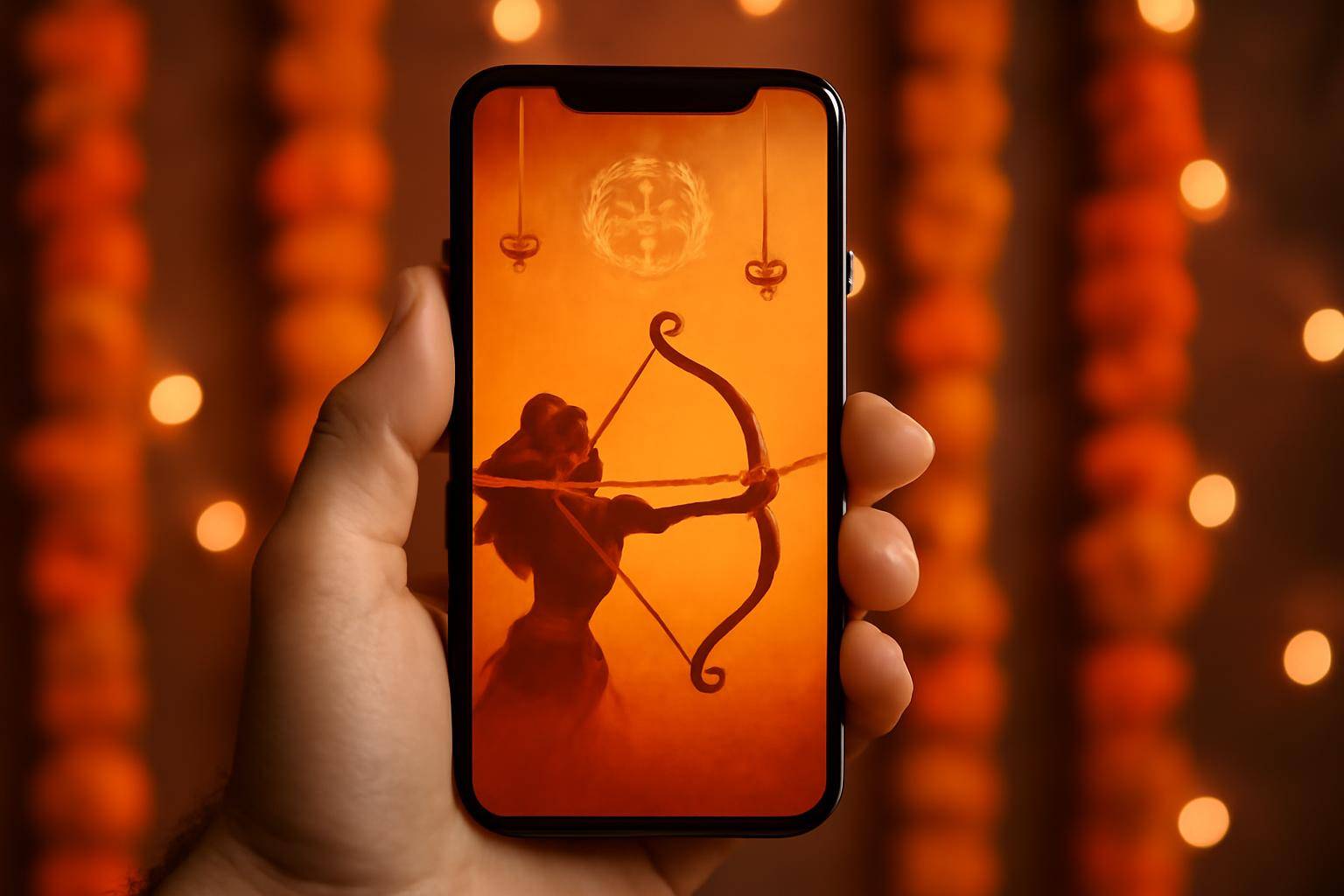
The Economic Times put together a list of 10 ChatGPT and Gemini prompts built for Dussehra 2026 festive images and greetings, using both tools as interchangeable starting points rather than crowning a winner. The hard part the roundup covers is the wording. The part it skips — what to do with the picture once it exists — is the half worth walking through.
What's in the Economic Times roundup?
The piece groups 10 separate prompts across two chat tools, ChatGPT and Gemini, each written to push the model toward Dussehra-specific visuals and accompanying greeting lines instead of a generic "festival wishes" render. It does not rank one tool above the other; both are treated as valid entry points for the same end product: an image paired with a short message.
Which numbers matter here?
- 10 — prompts included in the roundup
- 2 — AI tools named, ChatGPT and Gemini
- 1 — festival the list is built around, Dussehra 2026
That is the extent of what the source confirms. There's no ranking of which prompt performs best and no figure attached to how either tool is being used beyond this one list.
How do you adapt one of the ten prompts?
Open whichever tool you already have signed in, paste a prompt exactly as written, and generate once before editing anything. Compare the result against what you actually pictured — a specific deity, a particular color palette, morning light versus dusk — and feed those missing details back in as plain language rather than restarting from scratch. Regenerate, compare again, and repeat until the output matches. Specific wording matters more than clever wording; a vague request pushes both tools toward the same stock-looking clip art the roundup is trying to avoid.
Turning the output into a greeting
A generated picture is not yet a card. Someone still has to decide where the message sits — baked into the image through a follow-up prompt, or layered on afterward as a separate step. The second route gives more control over font size and placement, and it's where most people end up once a first attempt crops text awkwardly against a busy background.
Where do you save or send the finished card?
Once image and message are paired, they need somewhere to live. Quotags is a social app built around quote cards: drop in a photo, add the line of text, use its layout tools, then either post the result to a public feed or keep it in a private Quotebook stored on the device, no account required for that private option. It's a reasonable landing spot if the point of running one of these 10 prompts was always the greeting, not just the picture.
Does it matter which tool you pick first?
No single tool wins according to the roundup, and that matches how most people already work: whichever app is already open gets used. Switching between ChatGPT and Gemini mid-project rarely helps, since neither one remembers the other's output or your prior edits. Pick one, finish the wording pass inside it, and only try the second tool if the first genuinely stalls on a detail — a specific weapon, a particular backdrop, a festival motif it keeps rendering wrong. Treat the switch as a reset, not a shortcut, because starting over in a second tool means re-explaining everything the first one already understood from your earlier corrections.
Quotags
A social app for quotes, rebuilt for modern iOS. Capture a line, style it as a card, browse Discover, follow friends, or keep a private Quotebook on your device without an account. First shipped in 2013; 2.0 is live on the same listing.
Learn moreMore from the blog
Written by Smorgi Apps at Smorgi Apps. We do not invent download counts or ratings. If a number appears here, it came from App Store Connect or the live listing.