Blog · iOS
How to read an iOS privacy nutrition label before you install
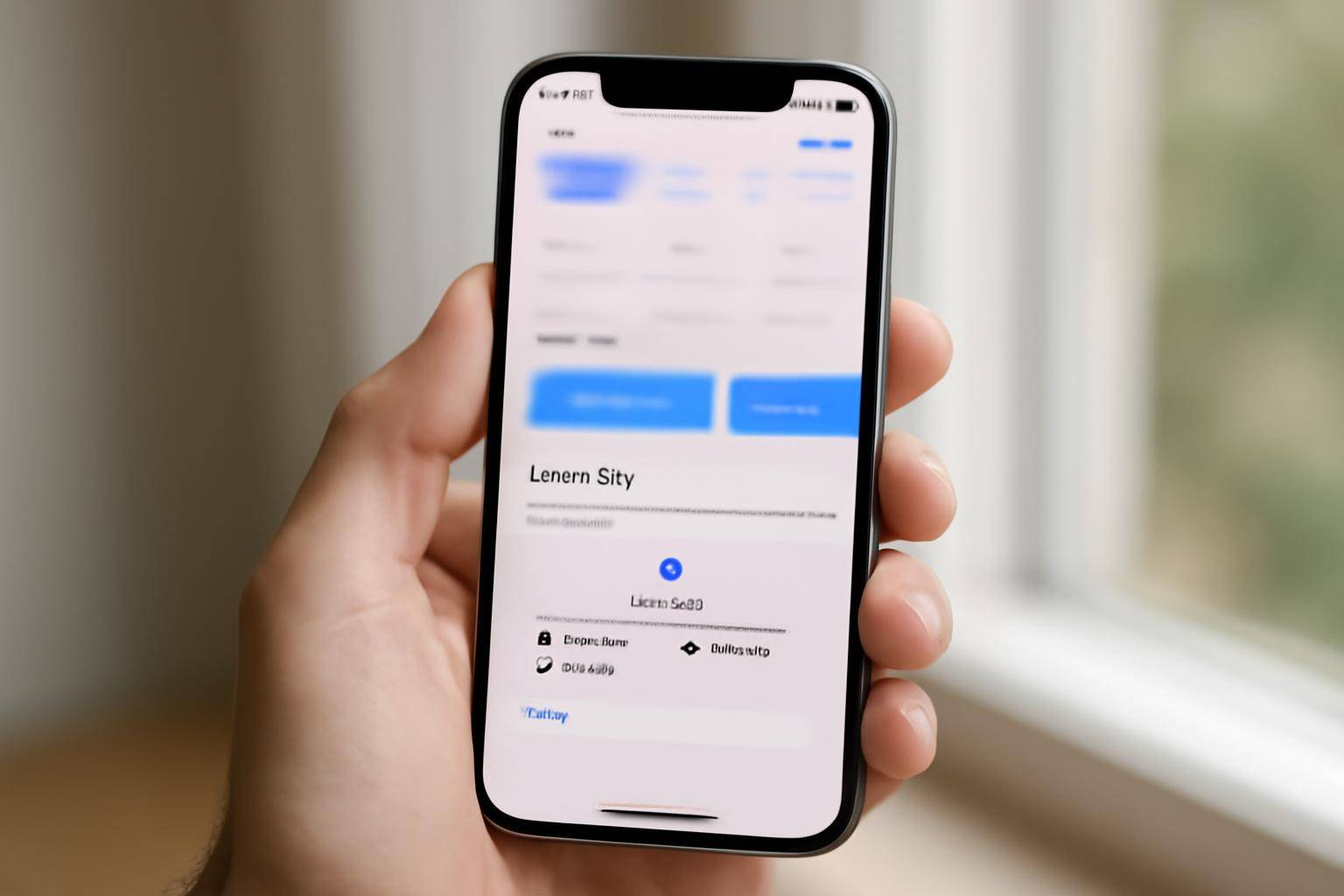
An iOS privacy label sorts what a developer claims to collect into three set categories, and reading it well means checking which category holds the information that matters to you instead of counting every line. Apple requires developers to fill this in themselves during submission, so the label reflects self-reported practice, not an independent audit.
Where do you find the label before you install?
Open the App Store, scroll to the app's page, and look for the section called App Privacy near the bottom, above the ratings history. Tap "See Details" to expand the full breakdown before you tap Get or Install. This view exists on every listing and updates only when a developer resubmits new details for review, so a label you saw months ago may already be out of date.
What counts as "Data Used to Track You"?
This is the strictest of the three categories. It covers information a developer ties to you or your device and then shares with a separate company for tracking across other apps and sites you use. If a line sits under this heading, assume it can follow you outside the app itself, often for ad targeting through an outside broker.
How does "Data Linked to You" differ?
Entries here are tied to your identity, account, or device, but the developer keeps them inside its own systems instead of sharing them with outside trackers. Common examples include contact info, purchase history, or usage details used to run the app, sync your account, or provide support. It's a narrower exposure than tracking, but it's still identifiable to you specifically.
What does "Data Not Linked to You" mean?
This category holds information collected without any identifier connecting it back to you, such as aggregated crash reports or general diagnostics. Because nothing ties it to your identity, it carries the least exposure of the three groups. That said, "not linked" describes the developer's own claim on submission, not a technical guarantee that Apple verifies line by line.
What should you check before you tap install?
Start with the tracking category, since that's the one that travels furthest from the app you're about to open. Then scan the linked entries for anything unexpected, like a flashlight tool listing your contacts or precise location with no obvious reason. Compare each category against the app's actual purpose: a mismatch between what's listed and what the software is supposed to do is the clearest signal worth pausing on, more useful than how long the label runs.
A quick way to keep the three straight:
- Used to Track You — shared with outside companies to follow you across other apps and sites.
- Linked to You — tied to your identity but kept inside the developer's own systems.
- Not Linked to You — collected without an identifier connecting it back to you.
None of this replaces reading permission prompts as they come up after install, since the label describes intent at submission time, while runtime prompts ask for consent app by app, feature by feature.
More from the blog
Written by Smorgi Apps at Smorgi Apps. We do not invent download counts or ratings. If a number appears here, it came from App Store Connect or the live listing.