Blog · Play
How Do You Make Your iPhone Speak Your Favorite Quote Every Time You Charge It?
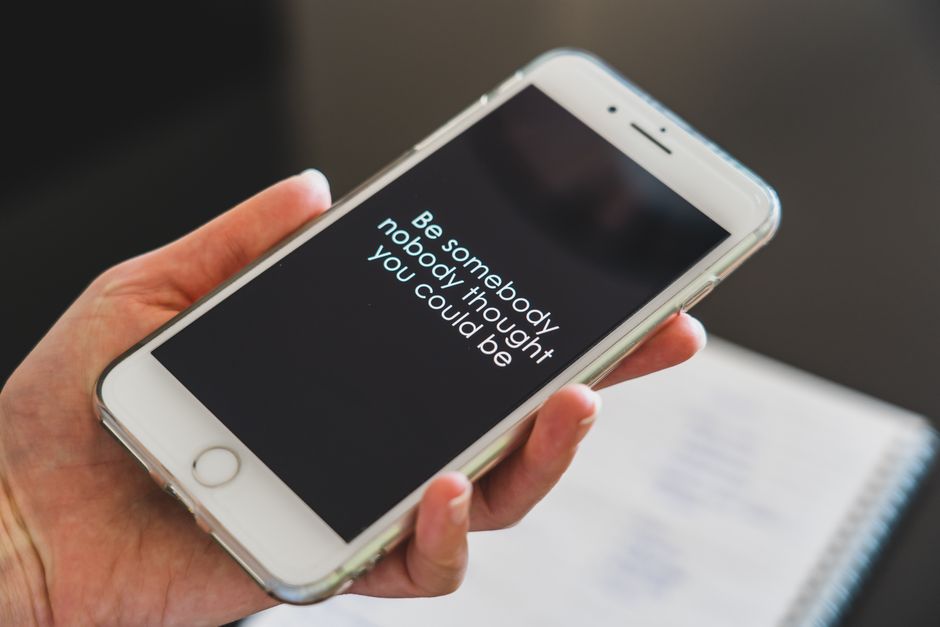
You can get your iPhone to read a favorite line out loud every single time you plug it in, and the trick behind it is a short automation built in Apple's own Shortcuts app, as Laptop Mag described recently. The phone doesn't need a special download for this. Everything happens inside a built-in app most people already have sitting on their home screen and never open.
The setup leans on a feature Apple calls Personal Automations. Instead of waiting for you to tap something, the phone watches for a trigger, in this case plugging into power, and then runs a small set of steps on its own. Pair that trigger with a text-to-speech action and the result is a phone that greets a charging cable with a line you picked.
What does the charging-quote routine actually do?
At its core, the setup links two pieces: a condition (power connected) and an action (read this aloud). Shortcuts already ships with both halves. The condition lives under the Automation tab as a "Charger" trigger, and the action is a plain speech tool buried in the app's library. Nothing about either piece is new or experimental; the novelty is simply chaining them together so one fires the other without you touching anything.
How do you build the Shortcuts automation?
- Open the Shortcuts app and tap the Automation tab at the bottom.
- Tap the plus sign, then choose Create Personal Automation.
- Scroll to Charger and select it, then choose "Is Connected" and confirm "When Starts."
- On the next screen, tap Add Action and search for Text. Type or paste the line you want spoken.
- Add a second action, Speak Text, and set its input to the Text action you just created.
- Pick a voice if the default doesn't suit you, then tap Next.
- Turn off "Ask Before Running" so the whole thing fires without a confirmation tap.
That's the entire build. Plug the cable in afterward and the phone should read the saved line back within a second or two of sensing power.
Can you rotate through more than one quote?
A single hardcoded line gets old fast, so the more useful version of this setup pulls from a running list rather than one fixed sentence. Swap the plain Text action for a reference to a Note containing several lines, one per paragraph, then insert a Choose from List action (or a random-selection step) before Speak Text so a different entry gets picked each time the automation runs. Editing the Note later changes what the phone says without touching the automation itself, which makes the whole arrangement easier to keep fresh.
Why would the shortcut skip running on its own?
Two settings most often explain a silent charging session. First, "Ask Before Running" has to be off, or the phone waits for a tap that may never come if the screen is dark. Second, Shortcuts needs permission to run automations in the background, a toggle found under Settings, Shortcuts. If either is misconfigured, the automation sits dormant and the cable goes in without a sound.
Silent mode and ringer volume also matter here, since Speak Text routes through the same audio path as everything else on the device. A phone that's muted stays muted for this too, so a quiet room won't hear the line regardless of how clean the setup is.
Does this work the same way on every iPhone?
The Shortcuts app and its Charger trigger have been part of iOS for several years now, so the mechanics described above apply broadly across current iPhone models rather than to one specific generation. What can vary is how quickly the automation fires after the cable connects, since that timing depends on the phone sensing power delivery, not on the automation logic itself. Older devices running older software should still find both the Automation tab and the Speak Text action in the same place.
Once it's running, the setup asks nothing further of you. Plug in at the end of a long day, and the same line waits on the other side of that click, read back in whatever voice you chose, for as long as the cable stays connected.
More from the blog
Written by Smorgi Apps at Smorgi Apps. We do not invent download counts or ratings. If a number appears here, it came from App Store Connect or the live listing.