Blog · Keyboards
How to turn off swipe typing on the iPhone keyboard
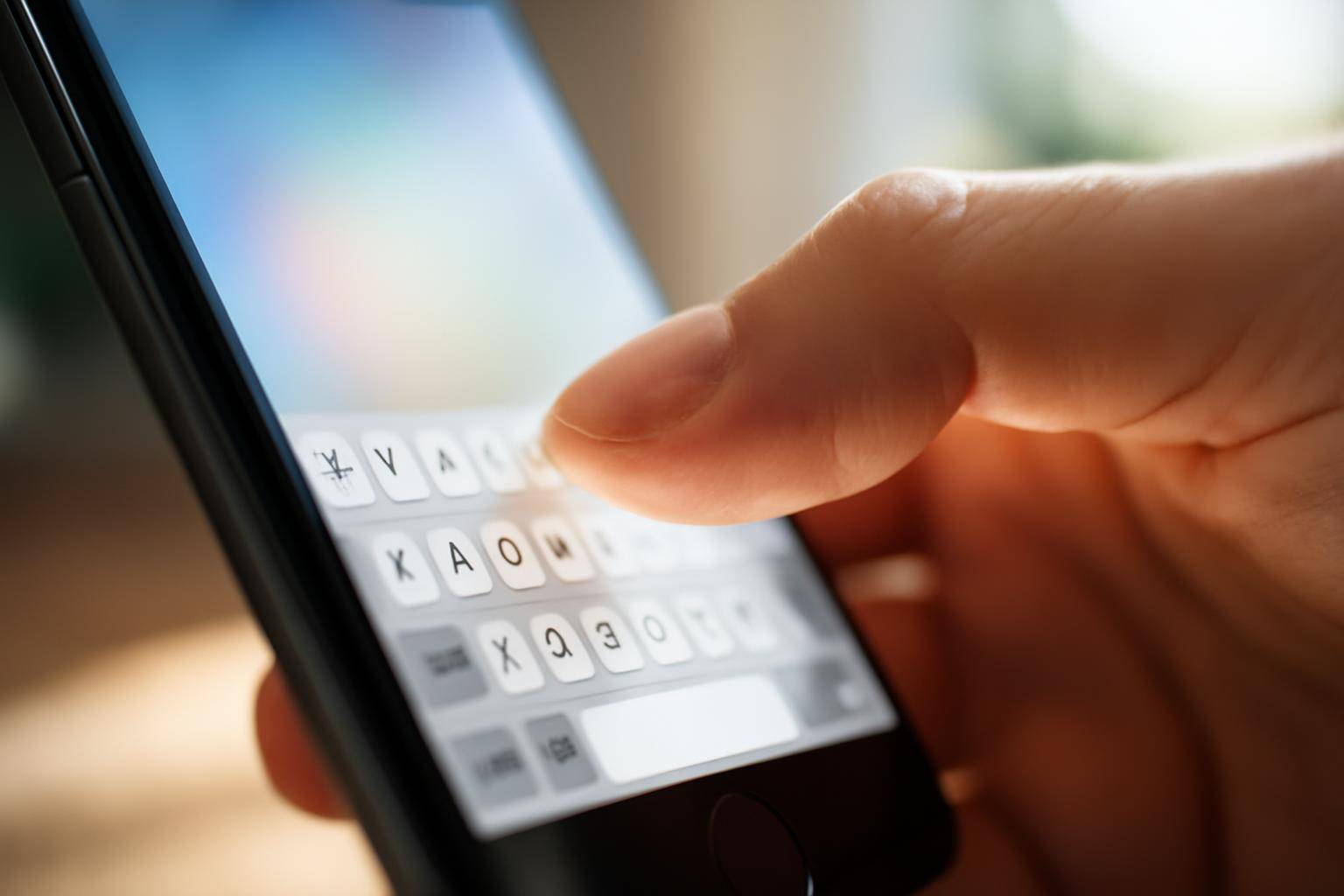
Turn off swipe typing on an iPhone by opening Settings, tapping General, then Keyboard, and switching off Slide Typing. Apple's built-in keyboard applies the change right away, so the next time Messages or Notes opens, dragging a finger across letters no longer drops in a word. The steps shift once a third-party keyboard like Gboard or SwiftKey is installed, because each app keeps its own swipe switch separate from Apple's.
Here's how the three most common keyboards handle the same gesture, and what actually changes once it's gone.
Where is the swipe switch on Apple's keyboard?
On the stock iOS keyboard, one toggle controls the whole gesture: Settings > General > Keyboard > Slide Typing. Switching it off applies instantly across every app that uses the default keyboard, including Messages, Mail, Notes, and the Safari address bar. No restart of the app or the phone is required.
How do you disable glide typing in Gboard?
Gboard, Google's keyboard for iPhone, stores its swipe setting inside its own app rather than Apple's menu. Open the Gboard app, go to its keyboard settings, and turn off Glide Typing. Because Gboard runs as a separate keyboard extension, Apple's Slide Typing switch has no effect on it — the two settings work independently of each other.
Does SwiftKey use a different setting?
Microsoft's SwiftKey follows the same pattern: a dedicated toggle sits inside the SwiftKey app itself, usually labeled Swipe Typing within its gesture or typing settings. Flipping Apple's system switch does nothing to SwiftKey, since iOS sandboxes third-party keyboard extensions away from the native keyboard's own preferences.
Which setup is simplest for someone switching keyboards often?
Anyone using only Apple's default keyboard needs to adjust just one toggle. Keeping Gboard or SwiftKey installed alongside it means repeating the process in each app, because iOS treats every keyboard extension as its own entity with its own saved preferences. Removing a keyboard from Settings > General > Keyboard > Keyboards doesn't carry a swipe preference over to the next keyboard added — each one starts with its own defaults.
What else changes once the gesture is off?
Turning off swipe typing doesn't touch predictive text, autocorrect, or the QuickType suggestion bar sitting above the keyboard; those stay active unless switched off on their own. Typing reverts to tap-only entry, so dragging a finger across letters simply stops producing a word, and an accidental swipe no longer inserts one either.
Swipe typing isn't the only default worth a second look while in Settings. For other iPhone and Watch features that can misbehave quietly in the background, see how Apple's new unified App Store terms affect EU developers and what actually breaks Apple Watch sleep tracking accuracy.
Can swipe typing be turned back on later?
Flipping any of these switches is reversible. Returning to Settings > General > Keyboard and turning Slide Typing back on restores the gesture immediately on Apple's keyboard, with no restart needed. Gboard and SwiftKey work the same way in reverse — reopening their in-app settings and re-enabling Glide Typing or Swipe Typing brings the feature back without reinstalling either app. Because each keyboard extension stores its own preference, re-enabling one doesn't turn the gesture on for the others. Someone who disables Apple's native toggle but keeps Gboard installed will still find Gboard's swipe gesture active until that separate setting gets changed too, since iOS never links the two.
More from the blog
Written by Smorgi Apps at Smorgi Apps. We do not invent download counts or ratings. If a number appears here, it came from App Store Connect or the live listing.