Blog · Keyboards
iOS 26.4's Keyboard Update: What to Turn On vs What to Leave Alone
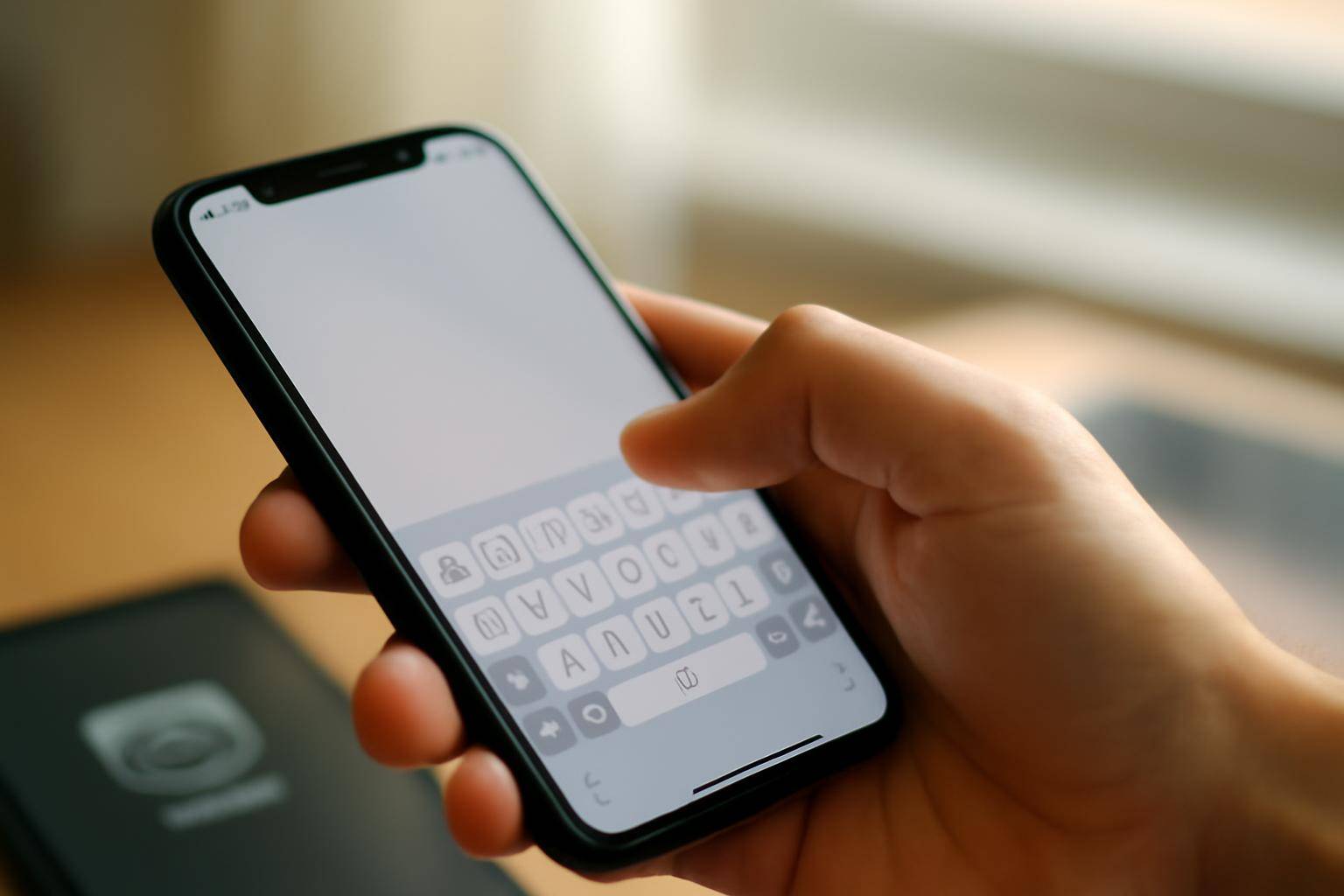
iOS 26.4 is out, and Macworld's roundup of features to try after installing the new iPhone update lists a keyboard change among the items worth checking once the install finishes. Here is how to think about that piece of the update without wasting an evening poking through menus for options that turn out to be minor.
What changed with the keyboard in iOS 26.4?
Macworld groups the keyboard change with the rest of the post-install checklist rather than treating it as a headline feature on its own, which is a signal it is worth a look but not a full menu redesign. Apple's own release notes for point updates like this one tend to describe typing changes in a single line, so the practical way to see what moved is to open the keyboard yourself in Messages or Notes and compare it to how it behaved before the update.
How do you install the update on your iPhone?
Go to Settings, then General, then Software Update. If iOS 26.4 shows up as available, tap Download and Install, then restart when prompted. Back up first through iCloud or a computer if the update includes anything you would not want to lose mid-install, which is standard advice for any point release, not something specific to this one.
Which new options are worth switching on?
Once the update lands, open Settings, then General, then Keyboard, and scroll through the list rather than assuming nothing moved. Toggles for things like predictive text, autocorrect, and haptic feedback on keypresses sit in that same screen, and an update that touches typing behavior sometimes adds or renames an entry there. Turning one on, typing a few sentences, and turning it back off if it gets in the way costs a minute and beats guessing from a changelog.
Should you turn off anything by default?
Not necessarily. Macworld's framing treats the keyboard item as something to try rather than something to disable, and there is no indication in the coverage that the change ships in a state that needs correcting. The more useful habit after any iOS update is testing one new setting at a time so a typing quirk that shows up later is easy to trace back to a specific toggle instead of the update as a whole.
Where can you read the rest of the feature list?
The full Macworld piece covers the keyboard item alongside everything else worth trying after the install, so that is the place to check before assuming you have seen the whole update. Apple's version notes inside Settings will always have the shortest official summary, but a roundup written after hands-on testing tends to catch the small typing changes that a one-line note skips.
Is the keyboard change reversible if you dislike it?
Yes, in the sense that everything sitting inside Settings, General, Keyboard is a toggle rather than a permanent rewrite of how typing works. If a new option makes autocorrect feel more aggressive or a haptic setting feels distracting, switching it back off returns things to how they behaved before 26.4. That reversibility is part of why Macworld's roundup treats the keyboard item as low stakes: nothing in the coverage suggests a setting that requires a workaround or a support thread to undo. Anyone hesitant to touch keyboard settings after an update can treat this one the same way as font size or sound effects, changes you can sample for a day and abandon without consequence if they do not fit how you type.
More from the blog
Written by Smorgi Apps at Smorgi Apps. We do not invent download counts or ratings. If a number appears here, it came from App Store Connect or the live listing.