Blog · iOS
What's the Fastest Way to Turn a Noisy Apple Watch Into a Quiet Fitness Tracker?
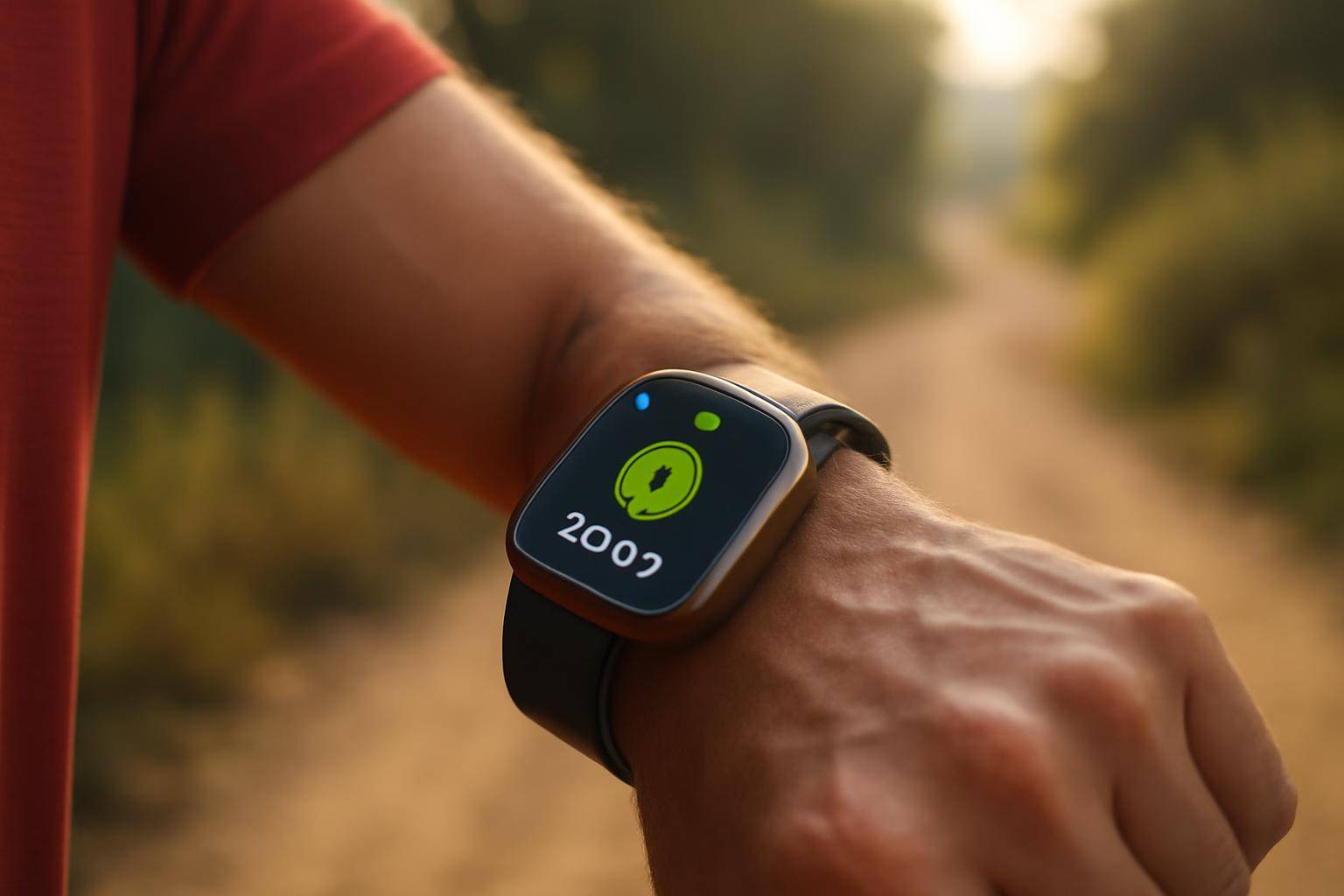
A distraction-free run or lift session starts with turning off the alerts that pull your eyes off the road, the bar, or the pool. The fastest fix is pairing a workout-specific Focus mode with a handful of watchOS notification settings, so the screen stays dark and quiet until you actually need it.
Here's a checklist you can work through in about five minutes, watch on wrist, iPhone nearby.
What's the Fastest Way to Quiet Notifications Before a Workout?
- [ ] Open the Watch app on your paired iPhone and go to Focus.
- [ ] Create or edit a Focus mode named something like "Training" or "Workout."
- [ ] Set it to allow only calls or messages from people you'd actually want to hear from mid-set.
- [ ] Turn on "Time Sensitive Notifications" only if you rely on a specific alert, like a delivery or a kid's school pickup.
Focus modes sync across iPhone and Apple Watch, so once it's built you don't have to configure the watch separately.
How Do You Stop Apps From Buzzing Your Wrist Mid-Session?
- [ ] On the watch, open Settings > Notifications.
- [ ] Scroll through third-party apps (social, email, news) and switch each one to "Mirror iPhone" off, or to "Notifications Off" if you never need it on your wrist at all.
- [ ] Leave weather, calendar, and messaging apps you actually use for coordination turned on, but muted during your new Focus.
This step is the one most people skip, and it's the reason a Focus mode alone doesn't fully quiet a watch — individual app permissions can override it.
Where Do You Turn Off Notification Previews on the Watch Face?
- [ ] Still in Notifications settings, look for "Show Previews" and set it to "When Unlocked" or "Never."
- [ ] This keeps a glance at your wrist from turning into a full paragraph of text mid-stride.
- [ ] Pair this with Silent Mode, which you can toggle from Control Center by swiping up on the watch face, so haptic taps replace sound entirely.
Can Focus Modes Sync Automatically With a Workout?
Yes. In the Watch app, under Focus, you can set filters so your training Focus turns on automatically when a workout starts and off when it ends. That means no manual toggling before every session — start the workout in the Fitness app and the quiet mode follows.
Which Settings Keep the Screen Calm Without Losing Health Data?
- [ ] Turn off "Wake Screen on Wrist Raise" for notifications specifically, while keeping it on for the workout metrics view.
- [ ] Reduce haptic strength in Settings > Sounds & Haptics if buzzing still feels intrusive.
- [ ] Confirm heart rate, GPS, and workout logging stay untouched — none of these tweaks affect the sensors collecting your fitness data, only what interrupts you while they run.
Quick reference
| Setting | Where | Effect |
|---|---|---|
| Training Focus | Watch app > Focus | Filters calls/texts during workouts |
| App notifications | Watch Settings > Notifications | Mutes non-essential apps |
| Show Previews | Watch Settings > Notifications | Hides message text on wrist |
| Focus auto-activation | Watch app > Focus filters | Starts Focus when workout begins |
| Wake on Wrist Raise | Watch Settings > General | Limits screen wake to metrics, not alerts |
Once these five settings are in place, the watch still tracks everything it did before — pace, heart rate, distance — it just stops asking for your attention until the workout is over.
More from the blog
Written by Smorgi Apps at Smorgi Apps. We do not invent download counts or ratings. If a number appears here, it came from App Store Connect or the live listing.