Blog · iOS
iPhone 18 Pro: Default Settings vs the Changes Worth Making on Day One
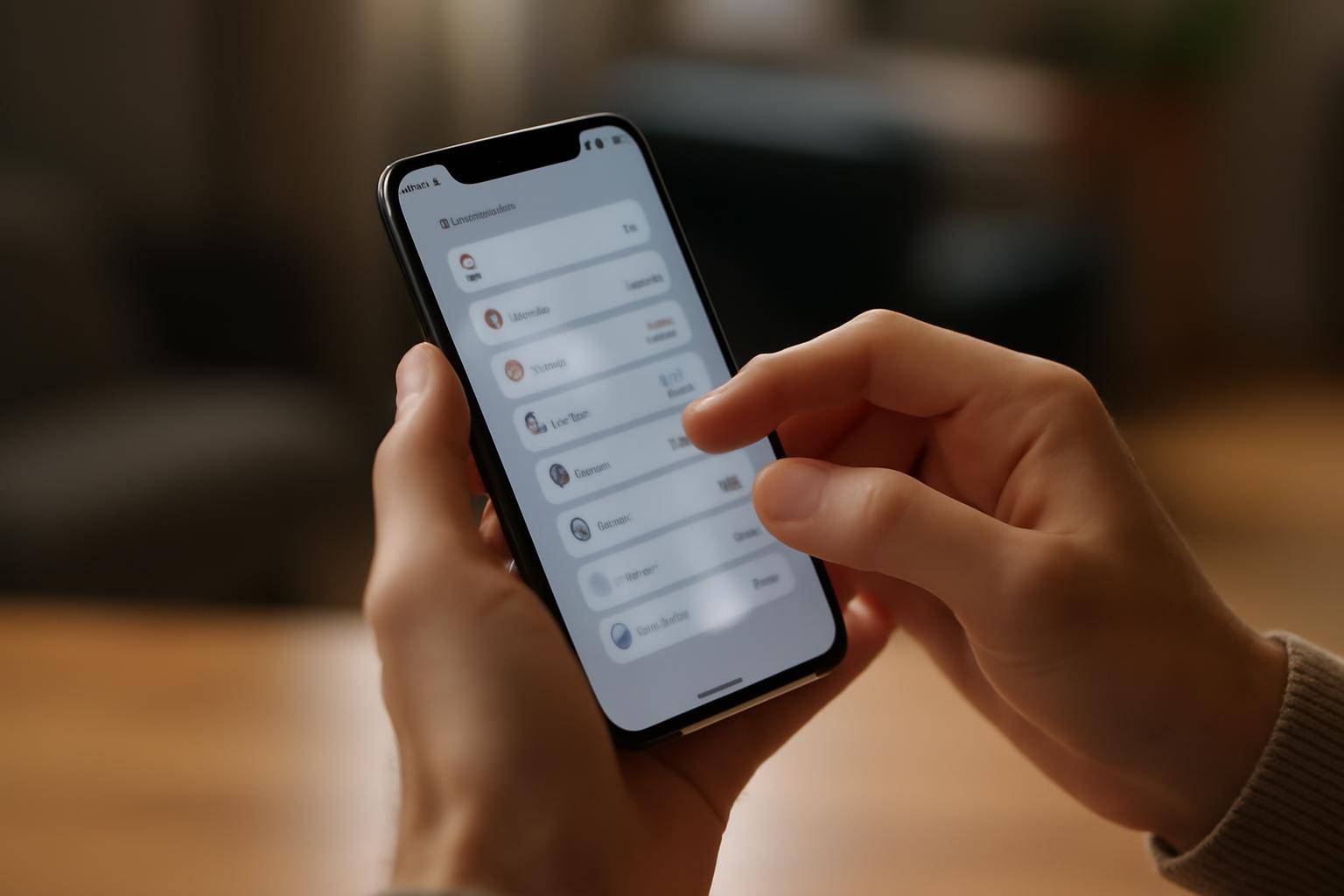
A brand-new iPhone 18 Pro ships with sensible defaults, but a handful of them are set for the broadest possible audience, not for you. Swap five toggles before you start installing apps and the phone will notify you less, last longer between charges, and share less with trackers you've never heard of. As The Apple Post pointed out when the phone landed, a few minutes in Settings now saves a lot of fiddling later.
Is the default Lock Screen notification setting right for a new iPhone 18 Pro?
Out of the box, most apps are allowed to show full previews on the Lock Screen the moment you install them. That is convenient for a demo unit, less so for a phone you carry everywhere.
- Open Settings > Notifications.
- Tap each app you've just restored from backup and set previews to When Unlocked or Never for anything sensitive.
- Turn on Scheduled Summary for low-priority apps so they batch instead of buzzing all day.
Does Standby mode need adjusting before you leave the store?
Standby turns the 18 Pro into a bedside display when it's charging and horizontal, and it defaults to showing whatever widget Apple picked for a fresh setup.
- Go to Settings > Standby.
- Decide whether you want Night Mode dimming on automatically in low light.
- Swap the default widget by holding the display while charging and swiping to a clock face or widget you'll actually use.
Should Optimized Battery Charging stay on or off on the 18 Pro?
Optimized Battery Charging is on by default and slows the last stretch of a charge to reduce long-term wear, which is the right call for most people. The exception is anyone who charges briefly and leaves fast, where it can mean waking up under 100 percent.
- Check Settings > Battery > Battery Health & Charging.
- Leave it on if you charge overnight.
- Turn it off only if you consistently need a full charge in under an hour.
Why change the default App Tracking Transparency prompt behavior?
Every new app you open will ask to track you across other apps and websites, and tapping through quickly during setup is how people end up allowing more than they meant to.
- Open Settings > Privacy & Security > Tracking.
- Switch Allow Apps to Request to Track off.
- Flip it back on case by case later if a specific app needs it.
How do you turn off automatic software updates until you're ready?
A first-generation point release sometimes lands with fixes that aren't fully baked, so holding updates for a few days after launch lets early bug reports surface first.
- Go to Settings > General > Software Update > Automatic Updates.
- Turn off Install iOS Updates.
- Keep Security Responses & System Files on, since those patch vulnerabilities without changing the whole OS.
None of these five changes takes longer than a minute, and together they turn a phone tuned for a demo table into one tuned for daily use.
More from the blog
Written by Smorgi Apps at Smorgi Apps. We do not invent download counts or ratings. If a number appears here, it came from App Store Connect or the live listing.